

Kubernetes Installation
This page describes how to run a self-managed instance of Plumber on Kubernetes.
💻 Requirements
- GitLab instance version >=17.7
- A PostgreSQL instance version >= 13 (or let the chart deploy one for you)
- A Redis instance version >= 6 (or let the chart deploy one for you)
- A Kubernetes cluster with:
- One ingress controller(ex: Nginx or Traefik)
- A certificate manager with a ACME provider: cert-manager
- If you let the chart deploy PostgreSQL or Redis, or if you run external services in Kubernetes: the ability to provision persistent volumes in your cluster
- Your local environment with CLI to interact with Kubernetes API:
- Write access to the DNS zone of the domain to use with Plumber
- A user account on the GitLab instance
🛠️ Installation
The Helm chart used in this documentation allows installing all these services embedded in the chart as dependencies or to use external PostgreSQL and/or Redis. The chart can optionally deploy a standalone PostgreSQL or Redis instance for you. Both alternatives are detailed below.
📥 Initialize your cluster
Create the namespace for Plumber
Terminal window kubectl create ns plumberAdd Plumber repo
Terminal window helm repo add plumber https://charts.getplumber.io/📄 Configure Domain name
Info
You need a domain to run Plumber. For example, if you have the domain name
mydomain.comthen Plumber URL will behttps://plumber.mydomain.comCreate DNS record
- Name:
<your_plumber_domain> - Type:
A - Content:
<your-cluster-public-ip>
- Name:
🦊 Configure GitLab OIDC
Plumber uses GitLab as an OAuth2 provider to authenticate users. Let’s see how to connect it to your GitLab instance.
Choose a group on your GitLab instance to create an application. It can be any group. Open the chosen group in GitLab interface and navigate through
Settings > Applications: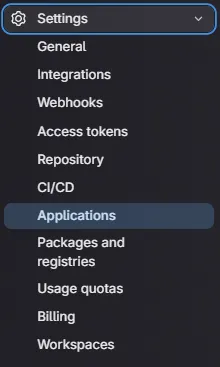
Then, create an application with the following information
- Name:
Plumber self-managed - Redirect URI :
https://<your_plumber_domain>/api/auth/gitlab/callback - Confidential:
true(let the box checked) - Scopes:
api
Click on
Save Applicationand you should see the following screen: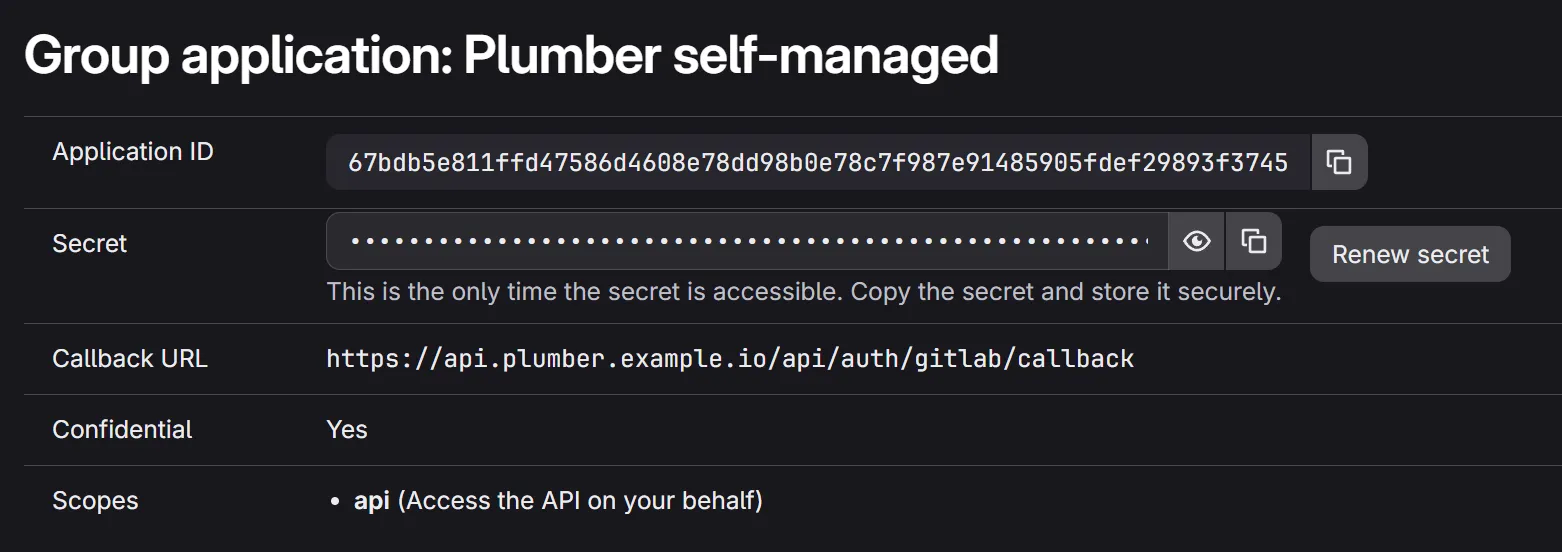
Store
Application IDandSecretsomewhere safe, we will need to use them in next step- Name:
⚙️ Configure your values
This section describes how to configure your custom values file. The default
values.yamlis available here. An example is available at the end of this documentation.Info
For the following sections, we assume that your custom value file will be located in your current directory and be named
custom_values.yamlSecrets
This section is optional. You need to follow this section only if you want to store secrets values as kubernetes secrets instead of writing them in your custom value file.
Plumber secret
Replace all occurrences of
REDACTEDby your Plumber secrets encoded in base64 and create following secret:secret-key: 256 bit secret key used to encrypt sensitive data (openssl rand -hex 32)gitlab-oauth2-client-id: Application ID of the GitLab applicationgitlab-oauth2-client-secret: Secret of the GitLab application
apiVersion: v1kind: Secretmetadata:name: plumber-secretnamespace: plumbertype: Opaquedata:secret-key: REDACTEDgitlab-oauth2-client-id: REDACTEDgitlab-oauth2-client-secret: REDACTEDPostgreSQL secret
Replace
REDACTEDby your postgres password encoded in base64. If you want to use postgres embedded in this chart, choose the value.apiVersion: v1kind: Secretmetadata:name: postgresql-secretnamespace: plumbertype: Opaquedata:password: REDACTEDRedis secret
Replace
REDACTEDby your redis password encoded in base64. If you want to use redis embedded in this chart, choose the value.apiVersion: v1kind: Secretmetadata:name: redis-secretnamespace: plumbertype: Opaquedata:password: REDACTEDPlumber
Add Plumber related configuration in your new values file
custom_values.yaml:Add Plumber domain
front:host: 'plumber.mydomain.com'jobs:host: 'plumber.mydomain.com'# Not using secret for configuration (comment if you use secret)extraEnv:- name: SECRET_KEYvalue: '<secret-key>'- name: GITLAB_OAUTH2_CLIENT_IDvalue: '<gitlab-oauth2-client-id>'- name: GITLAB_OAUTH2_CLIENT_SECRETvalue: '<gitlab-oauth2-client-secret>'# Using existing secret for configuration (uncomment if you use secret)#extraEnv:# - name: SECRET_KEY# valueFrom:# secretKeyRef:# name: "plumber-secret"# key: "secret-key"# - name: GITLAB_OAUTH2_CLIENT_ID# valueFrom:# secretKeyRef:# name: "plumber-secret"# key: "gitlab-oauth2-client-id"# - name: GITLAB_OAUTH2_CLIENT_SECRET# valueFrom:# secretKeyRef:# name: "plumber-secret"# key: "gitlab-oauth2-client-secret"worker:replicaCount: 5 # Default is 5. Increase it depending of your needsAdd your GitLab instance domain and organization
If you want to connect Plumber to a specific GitLab group only: add the path of the group in
organization(to run the onboarding, you must be at least Maintainer in this group)gitlab:domain: 'https://gitlab.mydomain.com'organization: '<group-path>'If you want to connect Plumber to the whole GitLab instance: let
organizationempty (to run the onboarding, you must be a GitLab instance Admin)gitlab:domain: 'https://gitlab.mydomain.com'organization: ''
Add your Ingress configuration
ingress:enabled: trueclassName: '' # Add class name for your ingress controllerannotations: {} # Add annotation required by your ingress controller or certificate manager(Optional) Add your custom Certificate Authority
You can either:
- Reference an existing secret containing your CA public root certificate using the
existingSecretkey. - Or manually add your CA public root certificate in the values using the
certificateskey.
customCertificateAuthority:existingSecret: ""certificates: []# - name: rootCA.crt # Must have the .crt extension# value: |# -----BEGIN CERTIFICATE-----# (SNIPPED FOR BREVITY)# -----END CERTIFICATE-----PostgreSQL
You can either let the chart deploy a standalone PostgreSQL instance or use an external one.
Option A: Deploy PostgreSQL via the chart
When
postgresql.deploy: true, the chart provisions a single-replica PostgreSQLStatefulSet, a headlessServicenamed<release>-postgresql, and aPersistentVolumeClaimfor the data directory. The backend and worker pods automatically get aninitContainerthat waits for PostgreSQL to be ready before starting.Caution
The bundled PostgreSQL is intended for evaluation, development, and small self-managed deployments. For production workloads we recommend using a managed database via Option B.
postgresql:deploy: truecustom:dbName: 'plumber'sslmode: 'disable'port: 5432global:postgresql:# Not using secret for auth (comment if you use secret)auth:username: REPLACE_ME_BY_POSTGRES_USERNAMEpostgresPassword: REPLACE_ME_BY_POSTGRES_PASSWORD# Using existing secret for auth password (uncomment if you use secret)#auth:# username: plumber# existingSecret: "postgresql-secret"# secretKeys:# adminPasswordKey: "password"# userPasswordKey: "password"# Persistence for the PostgreSQL data directorypersistence:size: '10Gi'storageClass: '' # leave empty to use the cluster default StorageClassaccessMode: ReadWriteOnce# To pull from a private registry or pin an exact version, uncomment and configure:#image:# registry: my-private-registry.example.com # omit to use Docker Hub# repository: postgres # defaults to official Postgres image# tag: "18"# digest: "" # optional: pin exact version with sha256:...# pullPolicy: IfNotPresentOption B: Use an external PostgreSQL
postgresql:deploy: falsecustom:host: REPLACE_ME_BY_POSTGRES_HOSTdbName: REPLACE_ME_BY_POSTGRES_DB_NAMEsslmode: 'require'port: 5432global:postgresql:# Not using secret for auth (comment if you use secret)auth:username: REPLACE_ME_BY_POSTGRES_USERNAMEpostgresPassword: REPLACE_ME_BY_POSTGRES_PASSWORD# Using existing secret for auth password (uncomment if you use secret)#auth:# username: plumber# existingSecret: "postgresql-secret"# secretKeys:# adminPasswordKey: "password"# userPasswordKey: "password"Redis
You can either let the chart deploy a standalone Redis instance or use an external one.
Option A: Deploy Redis via the chart
redis:deploy: true# Not using secret for auth (comment if you use secret)auth:password: REPLACE_ME_BY_REDIS_PASSWORD# Using existing secret for auth (uncomment if you use secret)#auth:# existingSecret: "redis-secret"# existingSecretPasswordKey: "password"# To pull from a private registry or pin an exact version, uncomment and configure:#image:# registry: my-private-registry.example.com # omit to use Docker Hub# repository: redis # defaults to official Redis image# tag: "8.4"# digest: "" # optional: pin exact version with sha256:...# pullPolicy: IfNotPresentOption B: Use an external Redis
redis:deploy: falsecustom:port: 6379host: REPLACE_ME_BY_REDIS_HOSTuser: REPLACE_ME_BY_REDIS_USENAMEcert: |REPLACE_ME_BY_REDIS_TLS_CERTIFICATE# Not using secret for auth (comment if you use secret)auth:password: REPLACE_ME_BY_REDIS_PASSWORD# Using existing secret for auth (uncomment if you use secret)#auth:# existingSecret: "redis-secret"# existingSecretPasswordKey: "password"🚀 Install the chart
Terminal window helm upgrade -n plumber --create-namespace --install plumber plumber/plumber -f custom_values.yamlTip
You have successfully installed Plumber on your Kubernetes cluster 🎉
📚 Configuration example
Info
This example run in a Kubernetes cluster using:
nginxas ingressControllercert-manager- A clusterIssuer named
letsencrypt-production
front:  host: "plumber.mydomain.com"
jobs:  host: "plumber.mydomain.com"  extraEnv:    - name: SECRET_KEY      value: "REDACTED"    - name: GITLAB_OAUTH2_CLIENT_ID      value: "REDACTED"    - name: GITLAB_OAUTH2_CLIENT_SECRET      value: "REDACTED"
gitlab:  domain: "https://gitlab.mydomain.com"
worker:  replicaCount: 5
ingress:  enabled: true  className: "nginx"  annotations:    cert-manager.io/cluster-issuer: "letsencrypt-production"
# Option A: Use an external PostgreSQLpostgresql:  deploy: false  global:    postgresql:      auth:        username: REDACTED        postgresPassword: REDACTED  custom:    host: "database-1.REDACTED.us-east-1.rds.amazonaws.com"    port: 5432    dbName: "plumber"    sslmode: "require"
# Option B: Deploy PostgreSQL via the chart#postgresql:#  deploy: true#  global:#    postgresql:#      auth:#        username: REDACTED#        postgresPassword: REDACTED#  custom:#    dbName: "plumber"#    sslmode: "disable"#    port: 5432#  persistence:#    size: "10Gi"
# Option A: Deploy Redis via the chartredis:  deploy: true  auth:    password: REDACTED
# Option B: Use an external Redis#redis:#  deploy: false#  auth:#    password: REDACTED#  custom:#    port: 6379#    host: "REDACTED"#    user: "REDACTED"#    cert: |#      -----BEGIN CERTIFICATE-----#      REDACTED#      -----END CERTIFICATE-----
⏫ Update
Update Plumber Helm repository
Terminal window helm repo updateRun the helm upgrade
Terminal window helm upgrade -n plumber --install plumber plumber/plumber -f custom_values.yamlYou have successfully updated Plumber 🎉