

GitLab
Plumber scans your GitLab CI/CD pipelines and repository configuration for security problems:
- Unverified remote scripts
- Weakened security jobs
- Missing branch protection
- More…
It turns them into a Plumber Score from A to E that can block pipelines below a minimum score you set.
Quick Start
Two ways to scan a GitLab project:
Run locally
Run with the GitLab CI component
include: that runs on every pipeline (no binary to install) with MR comments, project badges, and a live score badge.Run locally
Install Plumber: Homebrew, mise, a prebuilt binary, Docker, or from source (see Installation).
Authenticate: create a
GITLAB_TOKENwithread_api+read_repositoryscopes (see Authentication).Run the scan from inside your project, or against a remote one (see Running a scan):
Terminal window plumber analyzeRead your Plumber score: the attack paths Plumber found, the individual findings, and the A–E grade they lead to, plus an optional JSON report, PBOM, and CycloneDX SBOM (see Output).
Run with the GitLab CI component
Create a GitLab token
Use a token with
read_api+read_repositoryscopes (orapiif you enablemr_comment/badge), as described under Authentication below.Add the token to your project
Go to Settings → CI/CD → Variables and add it as
GITLAB_TOKEN(masked recommended).Add the component to your
.gitlab-ci.ymlInfo
- Self-hosted GitLab? You need your own copy of the component; see Hosting on self-hosted GitLab below. The snippet below targets gitlab.com.
- Why
workflow:rules? Without it, pushing to a branch with an open merge request creates two pipelines (a branch pipeline and an MR pipeline), splitting your jobs between them. The block below ensures a single pipeline per push: MR pipeline when an MR exists, branch pipeline otherwise. This is the recommended GitLab pattern. If you already haveworkflow:rules, keep yours and just add theinclude. - Publish a live score badge. Set
score_push: trueto publish a public Plumber Score badge for this repo. See Plumber Score.
workflow:rules:- if: $CI_PIPELINE_SOURCE == "merge_request_event"- if: $CI_COMMIT_BRANCH && $CI_OPEN_MERGE_REQUESTS # prevents duplicate pipelineswhen: never- if: $CI_COMMIT_BRANCH- if: $CI_COMMIT_TAGinclude:- component: gitlab.com/getplumber/plumber/plumber@<version>inputs:score_push: false # if "true": publish a public Plumber Score badgeInfo
The pinned commit SHAs in these snippets refer to gitlab.com/getplumber/plumber, the GitLab mirror that hosts the CI component. The mirror has its own commit history: its SHAs are intentionally different from the GitHub repository’s SHAs for the same release tag.
Get the latest version from the CI/CD Catalog.
Run your pipeline
Plumber now runs on every pipeline (default branch, tags, and open merge requests) and reports issues.
Optionally tune the policy with a
.plumber.yamlWithout one, the component runs Plumber’s built-in default policy, so you can stop here. To tune the policy, the recommended way is a small overlay that extends Plumber’s baseline and lists only what you change:
Terminal window plumber config generate --overlayextends: plumber:defaultversion: "2.0"gitlab:controls:containerImageMustNotUseForbiddenTags:tags:- latest- devplumber config generate(without--overlay) writes the full self-contained template instead. See the three configuration modes in the CLI Configuration guide.
Hosting on self-hosted GitLab
A self-hosted instance cannot include a component hosted on gitlab.com, so you need your own copy. Two ways:
Import the upstream repository directly into your GitLab instance.
Import the repository
Go to New Project → Import project → Repository by URL and use
https://gitlab.com/getplumber/plumber.git. Choose a group and project name (e.g.,infrastructure/plumber).Enable the CI/CD Catalog
In the imported project, go to Settings → General, ensure the project has a description (required for the Catalog), expand Visibility, project features, permissions, toggle CI/CD Catalog resource on, and save.
Publish a release
The imported project comes with upstream tags. Run a pipeline on an existing tag to trigger the release: CI/CD → Pipelines → Run pipeline, select an imported tag (e.g.,
v0.2.1), and click Run pipeline. This creates a Catalog release for that tag. (Alternatively, create a tag manually under Code → Tags → New tag, though that can conflict when fetching remote tags later.)Add the token
Create a token as described under Authentication, then add it under the scanned project’s Settings → CI/CD → Variables as
GITLAB_TOKEN(masked recommended).Use the component
include:- component: gitlab.example.com/infrastructure/plumber/plumber@eab00bad78e84584f55f02f125740176ca1ff592 # pinned plumber version: v0.5.24To update: re-import or manually pull upstream changes.
Fork on gitlab.com, then set up a pull mirror on your self-hosted instance so it stays in sync automatically.
Fork on gitlab.com
Fork getplumber/plumber under your gitlab.com namespace (e.g.,
your-org/plumber).Create a mirrored project on your instance
New Project → Import project → Repository by URL with
https://gitlab.com/your-org/plumber.git.Set up pull mirroring
In the project, Settings → Repository → Mirroring repositories: add
https://gitlab.com/your-org/plumber.git, direction Pull, plus a gitlab.com token withread_repositoryscope if the fork is private.Info
Pull mirroring syncs automatically (every 30 minutes on Premium, manual on other tiers). On a new upstream release, sync your gitlab.com fork first, then the mirror picks it up.
Enable the CI/CD Catalog
Settings → General: ensure a project description, then toggle CI/CD Catalog resource on and save.
Publish a release
Run a pipeline on an existing imported tag (CI/CD → Pipelines → Run pipeline) to create a Catalog release.
Add the token
As under Authentication, then add it as
GITLAB_TOKENunder the scanned project’s Settings → CI/CD → Variables.Use the component
include:- component: gitlab.example.com/infrastructure/plumber/plumber@eab00bad78e84584f55f02f125740176ca1ff592 # pinned plumber version: v0.5.24
Customizing the component
Override any input to fit your needs:
include:  - component: gitlab.com/getplumber/plumber/plumber@eab00bad78e84584f55f02f125740176ca1ff592 # pinned plumber version: v0.5.24    inputs:      # Target (defaults to current project)      server_url: https://gitlab.example.com   # Self-hosted GitLab      project_path: other-group/other-project   # Analyze a different project      branch: develop                            # Analyze a specific branch      ci_config_path: $CI_CONFIG_PATH            # CI config path (GitLab predefined variable)
      # Gate      min_score: "B"                             # Minimum Plumber Score letter to pass (A-E)      config_file: configs/my-plumber.yaml       # Custom config path
      # Output      output_file: plumber-report.json           # Export JSON report      pbom_file: plumber-pbom.json               # PBOM artifact      pbom_cyclonedx_file: plumber-cyclonedx-sbom.json  # CycloneDX SBOM (auto-uploaded as a GitLab report)      print_output: true
      # Job behavior      stage: test                                # Run in a different stage      allow_failure: true                        # Don't block the pipeline on failure      gitlab_token: $MY_CUSTOM_TOKEN             # Different variable name      verbose: true
      # Selective execution (mutually exclusive)      controls: containerImageMustNotUseForbiddenTags,branchMustBeProtected      # skip_controls: branchMustBeProtected
      # MR feedback (require `api` scope, see GitLab Integration above)      mr_comment: true      badge: true
The controls / skip_controls inputs map to the CLI --controls / --skip-controls flags (valid names). mr_comment and badge are the component equivalents of the CLI --mr-comment / --badge flags shown under GitLab Integration.
All inputs
| Input | Default | Description |
|---|---|---|
server_url | $CI_SERVER_URL | GitLab instance URL |
project_path | $CI_PROJECT_PATH | Project to analyze |
branch | $CI_COMMIT_REF_NAME | Branch to analyze |
ci_config_path | $CI_CONFIG_PATH | CI configuration file path to analyze. Defaults to the GitLab predefined variable (.gitlab-ci.yml unless customized in project settings) |
gitlab_token | $GITLAB_TOKEN | GitLab API token (read_api + read_repository, or api if mr_comment / badge is enabled) |
min_score | - | Minimum Plumber Score letter to pass (A-E), e.g. B fails on C, D, E. The recommended way to gate CI on the score |
min_points | "" | Fine-grained gate on score points (0-100). Empty means the CLI default gate of 100 points, which fails on any finding; not applied when only min_score is set |
threshold | 100 | Deprecated. Minimum percentage of passing controls. The default (100) is treated as unset; use min_score / min_points instead |
config_file | (auto-detect) | Path to config file (relative to repo root). Auto-detects .plumber.yaml, falls back to default |
output_file | plumber-report.json | Path to write JSON results |
pbom_file | plumber-pbom.json | Path to write the PBOM |
pbom_cyclonedx_file | plumber-cyclonedx-sbom.json | Path to write the CycloneDX SBOM (auto-uploaded as a GitLab report) |
glsast_file | gl-sast-report.json | Write a GitLab SAST report and upload it via artifacts:reports:sast, feeding the Security Dashboard and the MR security widget |
print_output | true | Print the human-readable analysis report in the job log. Does not affect log verbosity (verbose) or file outputs |
stage | .pre | Pipeline stage for the job. .pre runs before all other stages but requires at least one job in a regular stage. If Plumber is the only job, set this to test or another stage |
image | digest-pinned getplumber/plumber image tracking the latest release | Docker image to use |
allow_failure | false | Allow the job to fail without blocking |
verbose | false | Enable debug logging (level=debug lines) for troubleshooting. Independent of print_output |
mr_comment | false | Post/update a Plumber comment on the merge request (requires api scope) |
badge | false | Create/update a Plumber letter-score badge (requires api scope; default branch only) |
score | false | Deprecated no-op. The Plumber score is shown by default now; kept so pipelines that already set it do not break. Use score_point for the full points breakdown |
score_point | false | Add the points arithmetic to the Score section and the MR comment (the subtraction, the limits that held, what each issue code and each path tier took off); the score itself is shown by default |
score_push | false | Publish this repo’s Plumber Score to the hosted badge service (score.getplumber.io). Uses CI-native OIDC (no secret); the component mints the id-token. Every run that has score push enabled publishes its result for its branch. The public badge and the project’s score follow the default branch only: a merge-request or pull-request run is stored under its branch and never changes the badge. Warns (never fails) on error. See Plumber Score |
score_endpoint | https://score.getplumber.io | Score service base URL. Override only for a self-hosted score service; the OIDC audience follows this value so it always matches the target |
platform | https://platform.invalid | Plumber Platform base URL. Setting it pushes this run’s full results there over CI-native OIDC, and takes precedence over score_push. The default is a placeholder (an RFC 2606 .invalid host) that never enables a push: GitLab requires a non-empty id_tokens audience, so this input cannot default to empty. In platform mode only the platform’s policies are evaluated and the platform’s gate decides the exit code |
platform_allow_http | false | Allow platform to be plain http for a non-loopback host. Without it, http to anything but localhost / 127.0.0.0/8 / ::1 is refused before any credential is sent; https and loopback http need no opt-in |
controls | - | Run only listed controls (comma-separated). Cannot be used with skip_controls |
skip_controls | - | Skip listed controls (comma-separated). Cannot be used with controls |
fail_warnings | false | Treat configuration warnings (unknown keys) as errors (exit 2) |
Component configuration resolution
The component resolves your configuration in priority order:
config_fileinput set uses your specified path (relative to repo root)..plumber.yamlin repo root uses your repo’s config file.- No config found uses the default embedded in the container.
To author one, run plumber config generate --overlay for a minimal file that extends Plumber’s baseline (recommended), or plumber config generate for the full self-contained default config (see the CLI Reference). The CycloneDX SBOM the component writes is automatically uploaded as a GitLab CycloneDX report.
Authentication
In GitLab, go to User Settings → Access Tokens (direct link) and create a Personal Access Token with read_api + read_repository scopes. Project Access Tokens also work: create one inside your project under Settings → Access Tokens with the same scopes and at least Maintainer role.
Caution
The token must belong to a user (or project bot) with Maintainer role (or higher) on the project to access branch protection settings and other project configurations.
export GITLAB_TOKEN=glpat-xxxxUse api scope instead of read_api if you plan to enable --mr-comment or --badge (see GitLab Integration below).
Running a scan
# Auto-detected from git remoteplumber analyze
# Explicit projectplumber analyze --gitlab-url https://gitlab.com --project mygroup/myproject
Plumber auto-detects the provider from your git remote. If your repo’s remote does not match the CI provider you want to audit (mirrors, migrations, repos hosted on one platform but running CI on another), force it:
plumber analyze --provider gitlabSelf-Hosted GitLab
plumber analyze --gitlab-url https://gitlab.example.com --project mygroup/myprojectCustom CI Configuration Path
By default Plumber reads the project’s configured CI config path (usually .gitlab-ci.yml). Override it when your pipeline file lives elsewhere:
plumber analyze --ci-config-path .gitlab/ci/main.ymlExamples
Selective Control Execution
Run or skip specific controls by their YAML key names from .plumber.yaml, for iterative debugging or targeted CI checks.
# Only check image tags and branch protectionplumber analyze --controls containerImageMustNotUseForbiddenTags,branchMustBeProtected
# Run everything except branch protectionplumber analyze --skip-controls branchMustBeProtected
Controls not selected are reported as skipped in the output. The --controls and --skip-controls flags are mutually exclusive.
Caution
--controls narrows the controls enabled in .plumber.yaml; it does not enable a disabled one. Naming only controls that are disabled in your configuration leaves zero controls to run, and a run that evaluates nothing fails the gate (exit 1). Check what is enabled with plumber config view.
PBOM Only, No Compliance Verdict
To inventory the pipeline without evaluating any control, use --no-controls. It overrides whatever .plumber.yaml enables, so the same configuration keeps working for a normal plumber analyze in another job.
plumber-pbom: image: getplumber/plumber:latest variables: GITLAB_TOKEN: $PLUMBER_TOKEN script: - plumber analyze --gitlab-url $CI_SERVER_URL --project $CI_PROJECT_PATH --branch $CI_COMMIT_REF_NAME --pbom-cyclonedx pbom.cdx --no-controls --print=false artifacts: reports: cyclonedx: pbom.cdxThe run exits 0 as long as data collection succeeded, computes no score, and reports every control as skipped rather than passed in the JSON, CSV and OCSF outputs. See Artifact-only runs for the full behaviour, including which flags are ignored and why --sarif / --glsast are not written.
Info
The GitLab CI component has no no_controls input yet. Set the PLUMBER_ANALYZE_NO_CONTROLS: "true" CI/CD variable on the job to reach the same behaviour through the component.
Silent Mode (JSON Only)
plumber analyze \ --gitlab-url https://gitlab.com \ --project mygroup/myproject \ --config .plumber.yaml \ --output results.json \ --print=falseOutput
The report is read from the bottom: the Score section closes it, the attack paths and the individual findings sit right above it, and the passed and skipped controls open it. Output is color-coded in your terminal: green for passing controls, red for the attack paths and the findings. A private project with a single job running on docker.io/alpine:latest, whose settings variables Plumber could not read, and a branch that should be protected:
────────────────────✗ Individual findings (1)────────────────────
 HIGH  ISSUE-501  Branch protection missing       │       └──▶ Branch `dev` is not protected.
       Fix    protect the branch       ↳ docs: https://getplumber.io/docs/cli/issues/ISSUE-501
────────────────────✗ Attack paths (1)────────────────────
 HIGH  Attack path 1       Entry  docker.io/alpine:latest (mutable image tag)       │       └──▶ runs in job `build` ─▶ reaches secrets Plumber could not list
       So     if this image is compromised, an attacker can read the secrets Plumber could not list       Note   Plumber could not list the secrets       Fix    pin the image by digest       ↳ details: run `plumber explain -a 1`
────────────────────Score────────────────────
  ██████╗  Plumber Score  75 / 100  █████████████████████░░░░░░░ ██╔════╝  Status: FAILED (gate blocks at 100 pts) ██║ ██║       Worst case: if this image is compromised, an attacker can read the secrets Plumber could ╚██████╗  not list (attack path 1: docker.io/alpine:latest)  ╚═════╝  Best fix: protect the branch (dev), +10 pts, 85 / 100 (B)
Each attack path names its entry (what to search for in your pipeline), the job it enters and what an attacker reaches there, what that means (So), what Plumber could not check (Note) and one thing to do (Fix). plumber explain -a 1 prints the path again with every finding on it. How the paths and the individual findings turn into points is explained on the Plumber Score page.
Tip
When using --output, results are saved as JSON for programmatic access and CI/CD integration, attack paths included (plumberScore.paths and pathBlocks, see the JSON report structure).
Configuration
The gitlab.controls: section of a schema v2 .plumber.yaml. With extends: plumber:default on top, this file is an overlay: every control keeps its baseline setting and you list only what you change. Without extends, the file is the complete policy and a control left out does not run. Every field of every control, with its type and default, is listed in the Controls configuration reference.
extends: plumber:defaultversion: "2.0"
gitlab:  controls:    containerImageMustNotUseForbiddenTags:      enabled: true      tags:        - latest        - dev        - main      # When true, ALL images must be pinned by digest. Takes precedence      # over the tags list, so even version tags like alpine:3.19 fail.      containerImagesMustBePinnedByDigest: false
    containerImageMustComeFromAuthorizedSources:      enabled: true      trustDockerHubOfficialImages: true      trustedUrls:        - $CI_REGISTRY_IMAGE:*        - registry.gitlab.com/security-products/*
    branchMustBeProtected:      enabled: true      defaultMustBeProtected: true      namePatterns:        - main        - release/*      allowForcePush: false      minMergeAccessLevel: 30   # Developer      minPushAccessLevel: 40    # Maintainer
    pipelineMustNotIncludeHardcodedJobs:      enabled: true
    externalRefsMustNotCollide:      enabled: true
    includesMustBeUpToDate:      enabled: true
    includesMustNotUseForbiddenVersions:      enabled: true      forbiddenVersions:        - latest        - "~latest"        - main        - master        - HEAD      defaultBranchIsForbiddenVersion: false
    pipelineMustIncludeComponent:      enabled: false  # Disabled by default. Enable and configure for your org.      # Expression syntax (use one, not both):      # required: components/sast/sast AND components/secret-detection/secret-detection      # Array syntax (OR of ANDs):      # requiredGroups:      #   - ["components/sast/sast", "components/secret-detection/secret-detection"]      #   - ["your-org/full-security/full-security"]
    pipelineMustIncludeTemplate:      enabled: false  # Disabled by default. Enable and configure for your org.      # Expression syntax (use one, not both):      # required: templates/go/go AND templates/trivy/trivy      # Array syntax (OR of ANDs):      # requiredGroups:      #   - ["templates/go/go", "templates/trivy/trivy"]      #   - ["templates/full-go-pipeline"]
    # Detect debug trace variables that leak secrets in job logs.    pipelineMustNotEnableDebugTrace:      enabled: true      forbiddenVariables:        - CI_DEBUG_TRACE        - CI_DEBUG_SERVICES
    # Detect user-controlled variables in shell re-interpretation contexts    # (eval, sh -c, etc.). Safe: echo $CI_COMMIT_BRANCH. Dangerous: eval    # "deploy $CI_COMMIT_BRANCH".    pipelineMustNotUseUnsafeVariableExpansion:      enabled: true      dangerousVariables:        - CI_MERGE_REQUEST_TITLE        - CI_MERGE_REQUEST_DESCRIPTION        - CI_COMMIT_MESSAGE        - CI_COMMIT_TITLE        - CI_COMMIT_TAG_MESSAGE        - CI_COMMIT_REF_NAME        - CI_COMMIT_REF_SLUG        - CI_COMMIT_BRANCH        - CI_MERGE_REQUEST_SOURCE_BRANCH_NAME        - CI_EXTERNAL_PULL_REQUEST_SOURCE_BRANCH_NAME      # Regex patterns to allow specific script lines (escape $ as \\$).      allowedPatterns:        - "helm.*--set.*\\$CI_"        - "terraform workspace select.*\\$CI_"        - "docker build.*--build-arg.*\\$CI_"
    # Detect security scanning jobs that have been silently weakened.    securityJobsMustNotBeWeakened:      enabled: true      securityJobPatterns:        - "*-sast"        - "secret_detection"        - "container_scanning"        - "*_dependency_scanning"        - "gemnasium-*"        - "dast"        - "dast_*"        - "license_scanning"      allowFailureMustBeFalse:        enabled: false   # opt-in: GitLab templates ship with allow_failure: true      rulesMustNotBeRedefined:        enabled: true      whenMustNotBeManual:        enabled: true
    # Detect controlled variables overridden in .gitlab-ci.yml.    pipelineMustNotOverrideJobVariables:      enabled: true      variables:        - SECURE_ANALYZERS_PREFIX        - SAST_DISABLED        - SAST_EXCLUDED_PATHS        - SECRET_DETECTION_DISABLED        - CONTAINER_SCANNING_DISABLED        - DAST_DISABLED
    # Detect unverified script downloads and execution (curl|bash, wget|sh).    pipelineMustNotExecuteUnverifiedScripts:      enabled: true      trustedUrls: []        # - https://internal-artifacts.example.com/*
    # Detect Docker-in-Docker services and insecure daemon configuration.    pipelineMustNotUseDockerInDocker:      enabled: true      detectInsecureDaemon: true
Info
pipelineMustIncludeComponent and pipelineMustIncludeTemplate support two syntax options for defining requirements (use one, not both):
- Expression syntax (
required): A natural boolean expression usingAND,OR, and parentheses.ANDbinds tighter thanOR. - Array syntax (
requiredGroups): A list of groups using “OR of ANDs” logic. Outer array = OR, inner array = AND.
GitLab Integration
Plumber integrates directly with GitLab to provide visual feedback where your team works.
Merge Request Comments
Post a Plumber summary on every merge request, to catch issues before they merge.
plumber analyze --mr-commentOr via the GitLab CI component:
include: - component: gitlab.com/getplumber/plumber/plumber@eab00bad78e84584f55f02f125740176ca1ff592 # pinned plumber version: v0.5.24 inputs: mr_comment: true # Requires api scope on tokenFeatures:
- Opens on the Plumber Score: the letter badge (A–E), the points, the status against the gate, the worst case and the best fix; with
score_point, the points arithmetic too - Lists the attack paths as a table (number, tier, entry, job, what it reaches) and the count of individual findings
- Lists all controls, then the individual findings in detail, then each attack path with its findings
- Automatically updates on each pipeline run (no duplicate comments)
Caution
Token requirement: The api scope is required (not read_api) to create/update MR comments. The --mr-comment flag only works in merge request pipelines (CI_MERGE_REQUEST_IID must be set).
Project Badges
Display a live Plumber letter-score badge on your project’s overview page.
plumber analyze --badgeOr via the GitLab CI component:
include: - component: gitlab.com/getplumber/plumber/plumber@eab00bad78e84584f55f02f125740176ca1ff592 # pinned plumber version: v0.5.24 inputs: badge: true # Requires api scope on token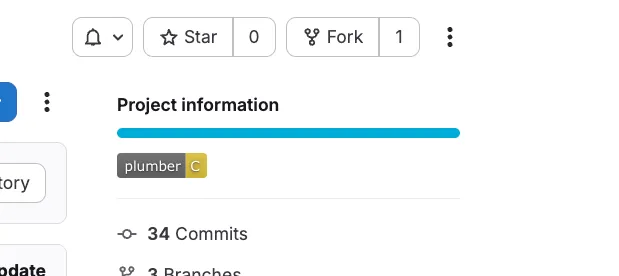
Features:
- Shows the Plumber letter score (A–E)
- Colored by grade: A/B green, C yellow, D orange, E red
- Only updates on default branch pipelines (not on MRs or feature branches)
- Badge appears in GitLab’s “Project information” section
Caution
Token requirement: The api scope is required (not read_api) and Maintainer role to manage project badges.
Reference
The complete, always-current catalogs and command reference:
CLI Reference
analyze flag, the config commands, exit codes, and the JSON / PBOM / CycloneDX output.Controls configuration
Issues
ISSUE-XXX with severity, impact, and remediation.Troubleshooting
| Issue | Solution |
|---|---|
GITLAB_TOKEN environment variable is required | Set the GITLAB_TOKEN environment variable with a valid GitLab token |
401 Unauthorized | Token needs read_api + read_repository scopes, from a Maintainer or higher |
403 Forbidden on MR settings | Expected on non-Premium GitLab; continues without that data |
403 Forbidden on MR comment | Token needs api scope (not read_api) when --mr-comment is enabled |
403 Forbidden on badge | Token needs api scope (not read_api) when --badge is enabled |
404 Not Found | Verify the project path and GitLab URL are correct |
| MR comment not posted | --mr-comment only works in merge request pipelines (CI_MERGE_REQUEST_IID must be set) |
| Badge not created/updated | Token needs api scope and Maintainer role (or higher) on the project |
| Configuration file not found | Ensure --config points at the real file (use an absolute path in Docker). Create one with plumber config generate or plumber config init |
| Configuration warnings | Run plumber config validate to list unknown keys and invalid values |
| Need details on a finding | Run plumber explain ISSUE-XXX for its description and remediation; plumber explain -a N prints attack path N of the last run with every finding on it |
| Component not found (self-hosted) | You must import or mirror the component to your instance (Hosting on self-hosted GitLab) |
| Plumber component job not running | The component’s default stage is .pre, which requires at least one other job in a regular stage. Override with inputs: { stage: test } |
| Two pipelines on the same push | Add workflow:rules to prevent duplicate branch + MR pipelines (see Run with the GitLab CI component) |
| Component job skipped on branch | The component runs only on merge request events, the default branch, and tags |
| Score badge not published | score_push publishes on every CI run, but the public badge only reflects your default branch (the service filters by the OIDC branch claim; MR/tag pipelines publish without touching it). A local run never publishes. The push warns, never fails, when the OIDC id-token is unavailable. See Plumber Score |
| Scan targets the wrong provider | The git remote points elsewhere; add --provider gitlab |