
Your GitLab Pipelines Are Probably Non-Compliant. Here's How to Fix That in 5 Minutes.
This post is a companion to our full article on Medium: Read the complete walkthrough on Medium.
The Hidden Risk in Your CI/CD Pipelines
Every day, thousands of developers push code through CI/CD pipelines without a second thought. But most of these pipelines are ticking time bombs for compliance and security.
Consider what might be lurking in your .gitlab-ci.yml and repo settings right now:
- Missing required security components: no secret detection, no SAST, no compliance checks
- Outdated includes/templates: missing critical security patches
- Hardcoded jobs: instead of reusable components, making auditing impossible
- Unprotected branches: allowing anyone to push directly to
mainwithout review - Images from untrusted registries: opening the door to supply chain attacks
- Mutable tags like
latestordev: meaning your builds aren’t reproducible
When the auditors come knocking, when a security incident occurs, when you need to prove exactly what ran and when, will you have answers?
Plumber: A Linter for Your CI/CD Security Posture
Plumber is an open-source CLI and GitLab CI component that automatically scans your pipelines and repository settings for compliance violations.
In under 5 minutes, Plumber will:
- Give you a compliance score you can track over time
- Report exactly what’s compliant and what’s not
- Detect outdated or forbidden version patterns in includes
- Verify your container images come from trusted registries
- Check your repository branch protection settings
- Ensure you’re using approved components and templates
Hands-On: From Zero to Compliant
Here’s the quick version. For the full step-by-step walkthrough with screenshots and real scan results, check out the Medium article.
Step 1: Install Plumber
brew tap getplumber/plumberbrew install plumberSee our installation docs for other methods (Mise, binary download, Docker, source).
Step 2: Create a GitLab Access Token
Create a Personal Access Token with read_api + read_repository scopes. The token must belong to a user with Maintainer role or higher on the project.
export GITLAB_TOKEN=glpat-xxxxxxxxxxxxxxxxxxxxStep 3: Generate a Configuration File
plumber config generateThis creates .plumber.yaml: your compliance contract defining 14 controls:
- Container images must not use forbidden tags
- Container images must come from authorized sources
- Branch must be protected
- Pipeline must not include hardcoded jobs
- Includes must be up to date
- Includes must not use forbidden versions
- Pipeline must include component
- Pipeline must include template
- Pipeline must not enable debug trace
- Pipeline must not use unsafe variable expansion
- Security jobs must not be weakened
- Pipeline must not override job variables
- Pipeline must not execute unverified scripts
- Pipeline must not use Docker-in-Docker
Step 4: Run Your First Scan
If you’re inside a git repo with a GitLab remote set to origin, Plumber auto-detects everything:
plumber analyzeOr specify explicitly:
plumber analyze --gitlab-url https://gitlab.com --project your-group/your-projectIf your project uses a custom CI config path, pass it explicitly:
plumber analyze --gitlab-url https://gitlab.com --project your-group/your-project --ci-config-path .gitlab/ci/main.ymlStep 5: Interpret the Results
Each control shows a pass or fail status, and the overall compliance score (0-100%) gives you a single metric to track. In our Medium walkthrough, we scan a non-compliant project and walk through fixing each issue, going from 12.5% to 37.5% compliance in minutes just by tweaking the config.
Step 6: Embed in Your GitLab Pipeline
The real power comes from continuous compliance monitoring. Add Plumber to your .gitlab-ci.yml with just two lines:
include: - component: gitlab.com/getplumber/plumber/plumber@v0.2.2Plumber will now run automatically on every push to default branch, every tag, and every merge request. See our GitLab Component docs for full setup instructions.
Bonus: Visual Feedback in GitLab
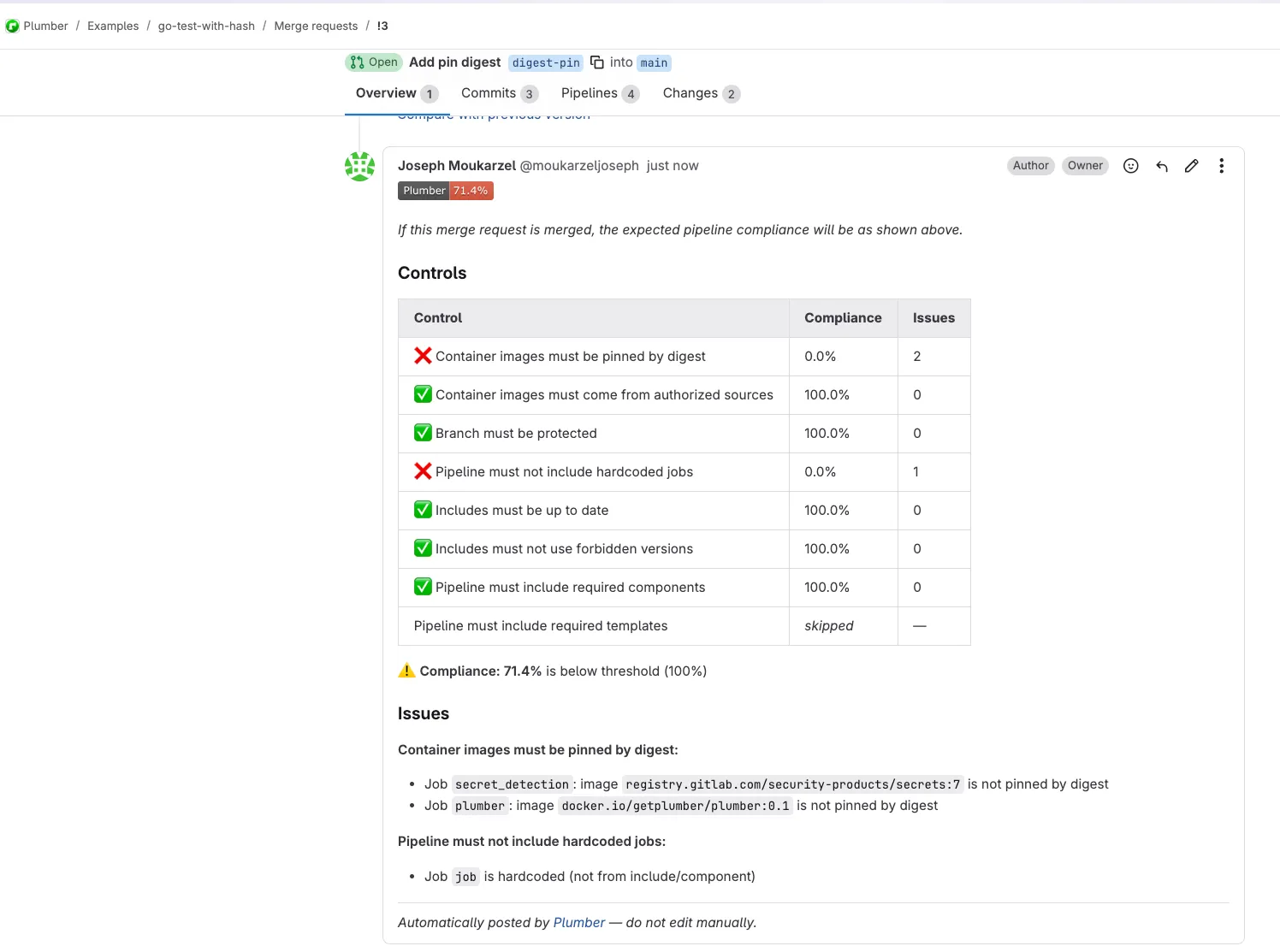
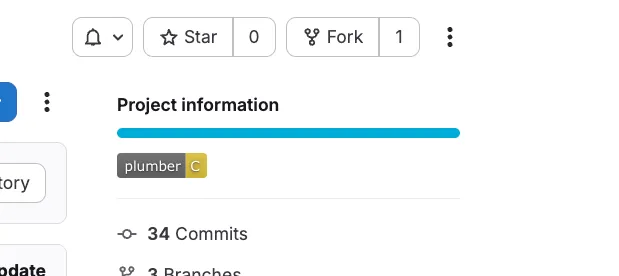
Want compliance results directly in your merge requests and project overview? Enable mr_comment and badge (⚠️Both features require api scope on your GitLab token instead of read_api)
include: - component: gitlab.com/getplumber/plumber/plumber@v0.2.2 inputs: ci_config_path: $CI_CONFIG_PATH # defaults to project's configured CI config path mr_comment: true # Post compliance summary on MRs badge: true # Show compliance badge on project pageMerge request comments show the full compliance breakdown with issues:
Project badges give at-a-glance compliance status:
Track Compliance Over Time
With Plumber running on every pipeline, you get:
- Quality gates: Block merges that drop your compliance score
- Audit trail: Every pipeline run produces a JSON report (
plumber-report.json) - Regression detection: New non-compliant images or configs get caught immediately
The JSON artifact is machine-readable: feed it into your SIEM, compliance dashboard, or parse it with jq. When auditors ask “what was the compliance state on March 15th?”, you have the answer.
Get Started
- GitHub Repository: CLI and source code
- GitLab CI Component: Drop-in pipeline integration
- Full Documentation: Installation, configuration, and reference
- Discord Community: Get help, share feedback
For the complete hands-on walkthrough with screenshots and real-world examples, read the full article on Medium.